Table of Contents
- What Is OpenDream AI?
- How Does OpenDream AI Work?
- How to Use OpenDream AI
- 1. Visit OpenDream AI
- 2. Choose a Template
- 3. Write Your Prompt
- 4. Select an AI Model
- 5. Adjust Image Settings
- 6. Generate the Image
- 7. Review and Improve
- How to Write Better OpenDream AI Prompts
- What Is a Negative Prompt in OpenDream AI?
- OpenDream AI Settings Explained
- What Can You Create With OpenDream-AI?
- Is OpenDream AI Free?
- Which OpenDream AI Plan Should You Choose?
- Can You Use OpenDream AI Images Commercially?
- OpenDream AI Pros and Cons
- Common OpenDream AI Mistakes to Avoid
- 1. Using very short prompts
- 2. Choosing the wrong model
- 3. Changing every setting immediately
- 4. Ignoring image dimensions
- 5. Expecting perfect text
- 6. Stopping after the first generation
- Is OpenDream AI Good for Beginners?
- OpenDream AI vs Other AI Image Generators
- OpenDream AI Best Practices
- FAQs
- What is OpenDream AI?
- Is OpenDream AI free?
- How do I use OpenDream AI?
- What is the best OpenDream AI model?
- Can I use OpenDream AI images commercially?
- Does OpenDream AI use Stable Diffusion?
- Can OpenDream AI create anime art?
- Can OpenDream AI create realistic images?
- Can I upload an image to OpenDream AI?
- What is a negative prompt in OpenDream AI?
- Is OpenDream AI good for businesses?
- Conclusion
What Is OpenDream AI?
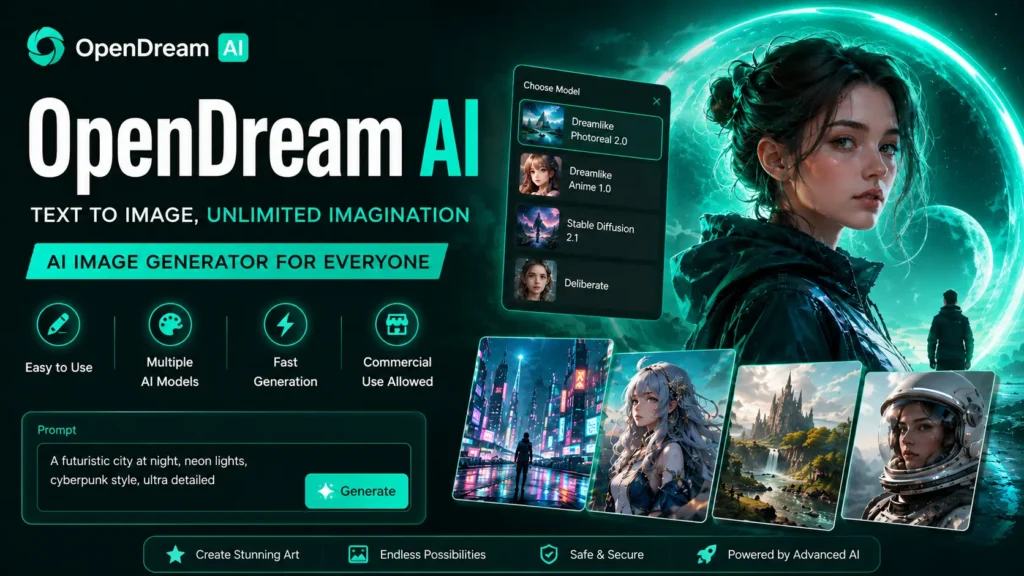
OpenDream AI is an online AI image generator that turns text prompts into images. You describe what you want to create, choose a model or template, adjust available settings, and generate artwork directly from your browser. OpenDream describes its platform as an AI image generator designed for users of different skill levels.
This makes OpenDream AI useful for people who want to create digital artwork without learning complicated design software or installing an AI model locally.
You can use it for:
- AI-generated portraits
- Anime artwork
- Fantasy scenes
- Character design
- Concept art
- Landscapes
- Product concepts
- Blog images
- Social media graphics
- Marketing visuals
- Creative experiments
The main appeal is speed. Instead of creating every visual element manually, you can describe an idea, generate an image, review it, and refine the prompt until you get a better result.
How Does OpenDream AI Work?
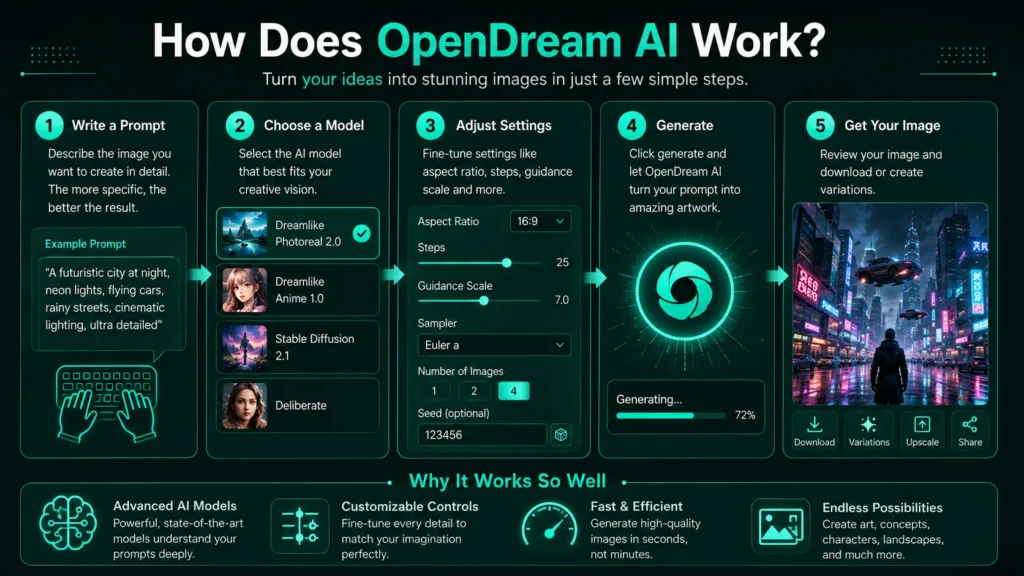
OpenDream AI follows a simple text-to-image workflow:
Write a prompt → choose a model → generate an image → review the result → refine it
The prompt gives the AI instructions about the subject, appearance, environment, lighting, style, and other details.
OpenDream currently lists four image-generation models:
- Dreamlike Photoreal 2.0
- Dreamlike Anime 1.0
- Stable Diffusion 2.1
- Deliberate
Model availability depends on the plan you use.
Because different models can interpret the same prompt differently, choosing the right model is an important part of getting good results.
How to Use OpenDream AI
If you’re new to AI image generation, you can start with a few basic steps.
1. Visit OpenDream AI
Open the OpenDream AI website in your browser and select Get Started.
The official guide says users can register using Google or Discord.
2. Choose a Template
OpenDream AI provides templates with preconfigured settings.
Templates are useful for beginners because you do not have to build every part of an AI prompt yourself.
You can select a template, enter your subject, and customize the result.
3. Write Your Prompt
Your prompt tells OpenDream what you want to see.
For example:
“A futuristic city at night, neon lights reflected on wet streets, cinematic photography, realistic lighting, wide-angle composition.”
A more specific prompt usually gives the model more useful information to work with.
4. Select an AI Model
Choose a model according to the style you want.
| OpenDream AI Model | Best Use |
|---|---|
| Dreamlike Photoreal 2.0 | Realistic images and photography-style visuals |
| Dreamlike Anime 1.0 | Anime and stylized characters |
| Stable Diffusion 2.1 | General image generation |
| Deliberate | Creative and artistic experimentation |
5. Adjust Image Settings
OpenDream provides settings for:
- Guidance Scale
- Sampling Steps
- Sampler
- Number of images
- Aspect ratio
- Public/private image selection
The official guide recommends beginners keep Guidance Scale, Steps, and Sampler at their default settings.
6. Generate the Image
When your prompt and settings are ready, click “Let’s dream.”
OpenDream will process the prompt and create the image.
7. Review and Improve
Your first result does not have to be your final result.
Check the generated image for:
- Distorted hands
- Strange faces
- Extra objects
- Incorrect proportions
- Wrong colors
- Unwanted backgrounds
- Poor composition
- Incorrect text
If something looks wrong, change the prompt or settings and generate another version.
OpenDream also supports uploading existing images to create variations.
How to Write Better OpenDream AI Prompts
One of the biggest factors affecting image quality is the prompt.
A useful structure is:
Subject + objects + attributes + expression + lighting + details + camera shot + medium/style
OpenDream’s own prompt guide recommends this type of structured approach and notes that words near the beginning of a prompt can carry more weight.
Example of a weak prompt
“A luxury car.”
Better OpenDream AI prompt
“A futuristic luxury electric car parked outside a modern glass building at night, wet pavement, cinematic lighting, realistic photography, dramatic reflections, wide-angle shot, highly detailed.”
The second prompt tells OpenDream AI much more about the image you want.
Keep important information early
If the main subject is a futuristic electric car, put that near the beginning rather than burying it at the end of a long description.
You can then add:
- Environment
- Lighting
- Style
- Camera angle
- Color
- Details
What Is a Negative Prompt in OpenDream AI?
A negative prompt tells the image generator what you do not want in the final image.
For example:
“blurry, distorted face, extra fingers, bad anatomy, duplicate objects, watermark, low quality”
Negative prompts can be useful when you repeatedly see the same problems.
For example, if generated characters frequently have distorted hands, adding terms related to bad anatomy or extra fingers may help reduce those issues.
However, don’t automatically add a huge list of negative keywords. Start with the specific problems appearing in your images.
OpenDream AI Settings Explained
Guidance Scale
Guidance Scale controls how strongly the model follows your prompt.
OpenDream’s guide describes a range from 1 to 50 and recommends 7 as a general balance between following the prompt and allowing creative freedom.
For beginners, the easiest approach is to start with the recommended setting.
Sampling Steps
Steps affect the denoising process used during image generation.
OpenDream currently recommends 25 sampling steps in its parameter guide. More steps can increase processing time, so increasing them does not automatically guarantee a better image.
Sampler
A sampler influences how the image develops from noise into the final result.
Different samplers can produce noticeably different styles and details. OpenDream’s guide discusses options including LMS, DDIM, Euler A, and Euler.
If you’re new to OpenDream AI, don’t worry about mastering every sampler immediately. Start with the default and experiment later.
Aspect Ratio
Aspect ratio controls the shape of your image.
For example:
- Square for profile images or icons
- Portrait for social media graphics
- Landscape for blog headers
- Wide formats for banners and thumbnails
OpenDream notes that changing image dimensions can also change the generated result and that unusual dimensions can sometimes create visual artifacts.
What Can You Create With OpenDream-AI?
OpenDream is useful for many creative workflows.
Bloggers
Create custom feature images and illustrations for articles.
For example:
“Editorial technology illustration showing an AI system transforming text into digital artwork, modern workspace, professional magazine style.”
Social Media Creators
Generate visual concepts for:
- X
Designers
Use AI artwork for early concepts, mood boards, character ideas, and visual experimentation.
Marketers
Create campaign concepts, product scenes, advertising ideas, and social graphics.
Small Businesses
A business can use OpenDream AI to quickly explore visual ideas before investing in professional design work.
The best workflow is often AI generation + human editing, especially when a final image needs exact branding, typography, or layout.
Is OpenDream AI Free?
Yes. OpenDream AI currently has a free plan.
The current pricing page lists these plans:
| Plan | Price | Credits |
| Free | $0/month | 24 credits/day |
| Core | $12/month | 3,000/month |
| Pro | $24/month | 12,000/month |
The Free plan includes commercial use, but it has lower generation priority, one parallel generation, limited settings, and other restrictions.
OpenDream says one image uses 2 credits, while four images use 8 credits.
There is no separate free trial because the platform uses its Free plan as the way to test the service. OpenDream also currently advertises a 20% discount for annual subscriptions.
Pricing can change, so check the live pricing page before subscribing.
Which OpenDream AI Plan Should You Choose?
Choose Free if:
- You’re just testing AI image generation
- You generate images occasionally
- You want to learn prompting
- You don’t need advanced capacity
Choose Core if:
- You create images regularly
- You need more credits
- You want greater generation capacity
- You’re producing content consistently
Choose Pro if:
- You generate large volumes of images
- AI visuals are part of your regular workflow
- You need the largest listed monthly credit allowance
For most beginners, starting with Free is the sensible choice. You can upgrade later if you consistently run out of credits.
Can You Use OpenDream AI Images Commercially?
Yes. OpenDream’s current pricing page states that images can be used commercially, including under the Free plan.
But there is an important distinction between commercial permission and copyright protection.
OpenDream’s terms state that the platform does not guarantee copyright or trademark protection for generated artwork.
For U.S. users, this matters because the U.S. Copyright Office has explained that copyright protection for generative-AI material depends on human creative contribution. Simply entering prompts does not automatically establish copyright in the resulting output.
Therefore, businesses should be careful when using AI-generated images for important commercial projects.
Pay particular attention to:
- Brand logos
- Trademarks
- Famous characters
- Real people’s likenesses
- Client requirements
- Copyright
- Publicity and privacy rights
For a business asset that really matters, adding meaningful human creative work and reviewing the applicable rights is a much safer approach.
OpenDream AI Pros and Cons
Pros
- Easy browser-based workflow
- Free plan available
- Multiple AI models
- Templates for beginners
- Photorealistic and anime options
- Prompt and negative-prompt controls
- Image variation support
- Aspect-ratio controls
- Commercial use permitted under current platform terms
Cons
- Free plan has limitations
- Paid plans are needed for greater generation capacity
- AI outputs can contain visual mistakes
- Results may vary between generations
- Complex prompts may require experimentation
- Copyright protection is not guaranteed
- Users should verify current pricing and terms before commercial use
Common OpenDream AI Mistakes to Avoid
1. Using very short prompts
“A beautiful woman” gives the model little direction.
Add the environment, clothing, lighting, style, composition, and other important details.
2. Choosing the wrong model
Match the model to the visual goal.
Use a photorealistic-focused model for realistic photography-style work and an anime-focused model when you want anime artwork.
3. Changing every setting immediately
If you’re a beginner, use OpenDream’s recommended defaults first.
Change one setting at a time so you can understand its effect.
4. Ignoring image dimensions
A landscape image may not work well as a vertical social post.
Choose your aspect ratio based on where the image will be published.
5. Expecting perfect text
AI image generators can still struggle with exact typography and spelling.
If your design needs a specific headline, create the artwork first and add the final text using a design editor.
6. Stopping after the first generation
AI image creation is iterative.
Generate, inspect, improve the prompt, and try again.
Is OpenDream AI Good for Beginners?
Yes.
OpenDream AI is particularly beginner-friendly because users can start with templates instead of learning advanced prompt engineering immediately.
A beginner can:
- Choose a template.
- Enter a subject.
- Generate an image.
- Review the result.
- Experiment with the prompt.
More advanced users can move into Guidance Scale, sampling steps, samplers, prompt weights, image variations, and different models.
OpenDream AI vs Other AI Image Generators
The right AI image generator depends on your needs.
| Need | OpenDream AI |
| Beginner-friendly | Yes |
| Browser-based | Yes |
| Free plan | Yes |
| Multiple models | Yes |
| Templates | Yes |
| Text-to-image generation | Yes |
| Local GPU required | No |
| Commercial use | Permitted under current terms |
| Advanced local model control | Better suited to dedicated local workflows |
| Detailed manual editing | Better handled by traditional design software |
If you want a relatively simple browser-based AI image generator, OpenDream AI is worth considering.
If you need extremely advanced customization, a local Stable Diffusion workflow or another specialized platform may be more suitable.
OpenDream AI Best Practices
For better results, follow a simple process:
- Start with a clear idea
- Put the main subject near the beginning of the prompt
- Describe the environment
- Specify the visual style
- Add useful lighting information
- Choose the right model
- Use the correct aspect ratio
- Start with recommended settings
- Use negative prompts only when needed
- Generate multiple variations when available
- Compare results
- Refine the prompt
- Review the final image before publishing
For professional work, also keep a record of the prompt, source material, edits, and final creative changes.
FAQs
What is OpenDream AI?
OpenDream AI is an online AI image generator that creates artwork from text prompts. It provides templates, multiple image-generation models, image settings, and variation tools.
Is OpenDream AI free?
Yes. OpenDream AI offers a Free plan with 24 credits per day. Paid Core and Pro plans provide larger monthly credit allowances.
How do I use OpenDream AI?
Create an account, choose a template or model, enter a prompt, adjust settings if needed, select an aspect ratio, and click “Let’s dream” to generate your image.
What is the best OpenDream AI model?
It depends on your goal. Dreamlike Photoreal 2.0 is aimed at photorealistic imagery, while Dreamlike Anime 1.0 is designed for anime-style artwork. OpenDream also lists Stable Diffusion 2.1 and Deliberate.
Can I use OpenDream AI images commercially?
Yes. OpenDream’s current pricing page says generated images can be used commercially. However, commercial-use permission does not guarantee copyright or trademark protection.
Does OpenDream AI use Stable Diffusion?
Yes. Stable Diffusion 2.1 is one of the models currently listed by OpenDream.
Can OpenDream AI create anime art?
Yes. OpenDream currently offers Dreamlike Anime 1.0 for anime-style image generation.
Can OpenDream AI create realistic images?
Yes. Dreamlike Photoreal 2.0 is designed for photorealistic image generation.
Can I upload an image to OpenDream AI?
Yes. OpenDream’s guide says users can upload existing images and create multiple variations.
What is a negative prompt in OpenDream AI?
A negative prompt tells the image model what you want to avoid, such as blurry details, distorted anatomy, duplicate objects, watermarks, or unwanted styles.
Is OpenDream AI good for businesses?
It can be useful for businesses that need quick visual concepts, blog images, marketing ideas, social media graphics, or early design concepts. Commercial use is permitted under OpenDream’s current stated terms, but businesses should still review copyright, trademark, and client requirements.
Conclusion
OpenDream AI is a browser-based AI image generator that makes it easy to turn text prompts into digital artwork. Its combination of templates, multiple models, adjustable settings, image variations, and a free plan makes it useful for beginners, creators, bloggers, marketers, designers, and small businesses.
The easiest way to get started is to use a template, write a clear prompt, select the model that matches your desired style, and generate a few versions. As you become more comfortable, you can experiment with negative prompts, Guidance Scale, sampling steps, samplers, prompt weights, and different image dimensions.
For commercial users, OpenDream currently permits commercial use, but that should not be confused with guaranteed copyright protection. U.S. users should consider the amount of human creative contribution and review relevant copyright, trademark, privacy, and publicity issues before using AI-generated artwork in important commercial projects.
For most people, the best starting point is simple:
Try the Free plan → choose a suitable model → write a specific prompt → generate → refine → review the rights → publish.