
LinkedIn Text Formatter
You can bold, italicize, and underline text on LinkedIn using my LinkedIn Text Formatter app. Choose the formatting you want, copy, paste, and post!
Format Your LinkedIn Text
Interested in formatting the text in your LinkedIn profile and LinkedIn posts? You can bold, italicize and underline text in your LinkedIn profile and posts using our LinkedIn Text Formatter. LinkedIn doesn’t natively allow for formatting but that doesn’t mean it’s impossible. The letters and numbers you see on your keyboard aren’t the only letters and numbers available to us.
By using Unicode symbols that look like formatted text, we are able to trick LinkedIn and the viewer into thinking what they are seeing is bold or italics, or underlined text.
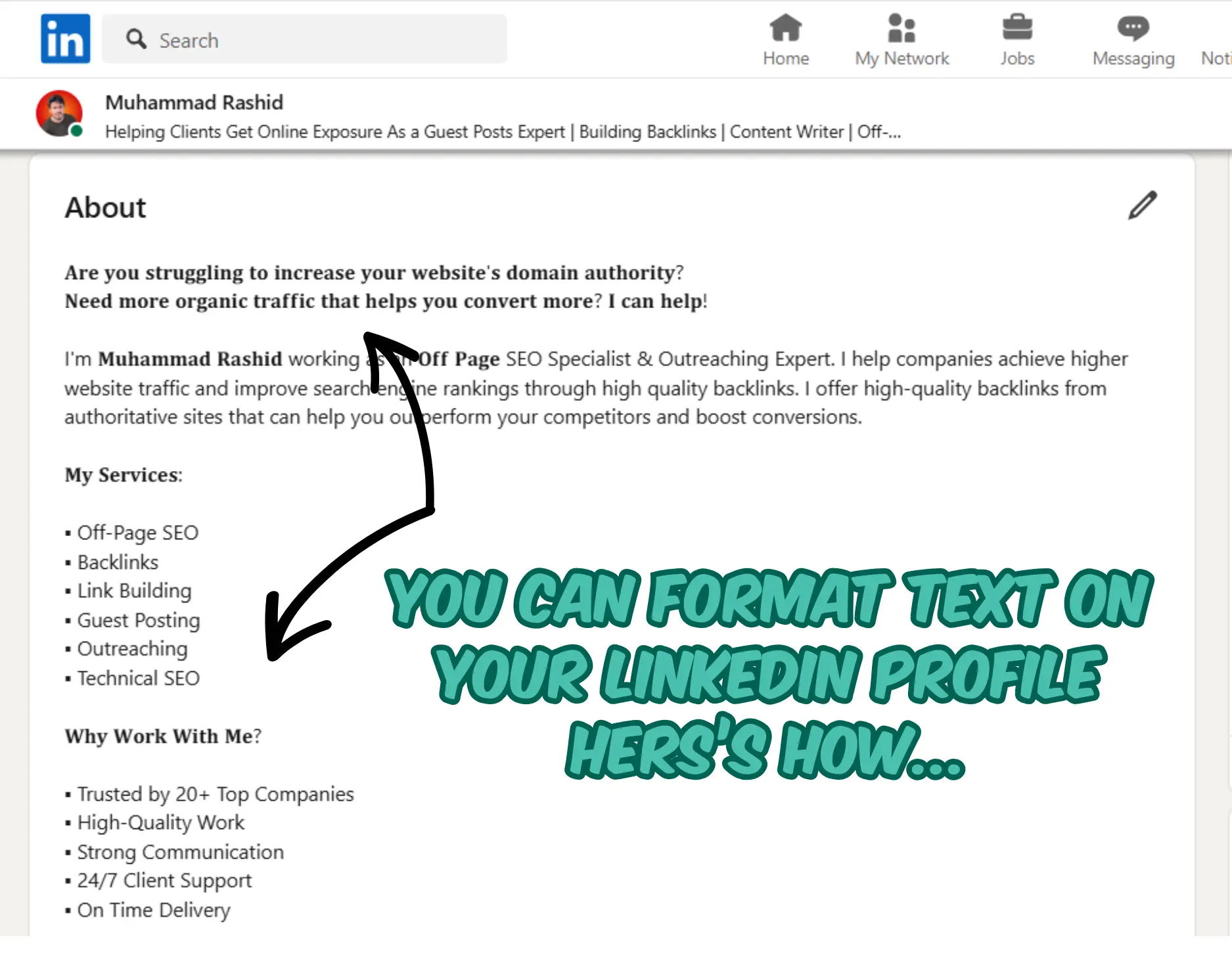
Before Using Our LinkedIn Text Formatter, Please be Aware:
- NOT SEARCHABLE: Text transformed by our LinkedIn Text Formatter IS NOT SEARCHABLE within LinkedIn. Use the LinkedIn Text Formatter for headings and short snippets designed to catch a person’s eye. Do not use the LinkedIn Text Formatter for areas that need to be indexed and found by LinkedIn’s search engine.
- MAY NOT DISPLAY ON ALL DEVICES: Also, because this is Unicode, the formatted text may not display universally on every device. As more people update their devices, the ability to display will get better. If a device cannot display the Unicode, the reader will see little boxes instead.
- NOT ACCESSIBLE BY SCREEN-READERS: Another VERY IMPORTANT thing to note: the Unicode text is not accessible by those who use a screen-reader. Screen-readers don’t understand the meaning behind the Unicode and instead read them out individually as Unicode character names.
The takeaway here is to consider the ramifications and benefits of using formatted text in your LinkedIn profile. Please make a thoughtful decision and if you do decide it makes sense, use it sparingly.
How Do I Format Text on LinkedIn?
- Backup the LinkedIn profile section that will contain the faux formatted text. Copy all and paste into a word doc.
- Enter the text you want formatted in the box below. As you type, you’ll see the text instantaneously transformed into bold, italics, underline and script.
- Highlight the formatted text you like and copy it by using the right-click menu or by pressing Ctrl+C (Windows) or Cmd+C (Mac).
- Open your LinkedIn profile or create a new post on LinkedIn.
- Paste the text into the area of your choosing by using the right-click menu or by pressing Ctrl+V (Windows) or Cmd+V (Mac).
- Voila! Formatted text on your LinkedIn profile!
CAUTION: If you are close to the maximum characters, you may find that LinkedIn’s character count behaves a little wonky when you paste your unicode text in. Makes sure you save your original text.
